




.webp)

Adobe License Purchase & Usage Guide: From Order to Account Retrieval
Author: AdobeLicense
Release time: 2026-03-02 08:15:29
View number: 29060
🚀 Adobe License Purchase & Usage Guide
Follow these simple steps to retrieve and log into your genuine Adobe account.
1
Place an Order- Select Your Plan: Visit our official store CreativeFlow, choose your Adobe license plan, and add it to your cart.
- Complete Payment: Fill in your email address and select a payment method to complete the checkout.
- Save your Order Number (Important): After a successful payment, a unique [Order Number] will be displayed. Please copy and save it—this is your only credential to retrieve your account!
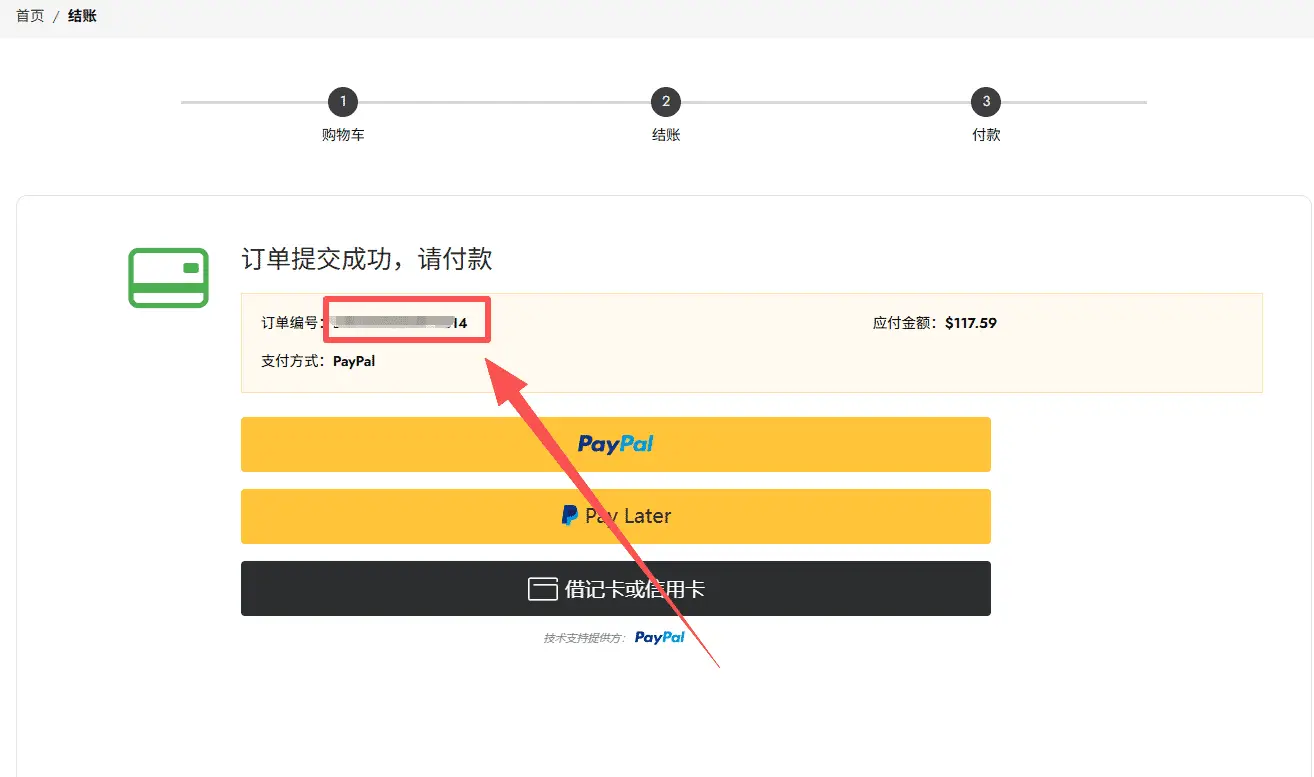
Fig 1: Your Order Number on the confirmation page
2
Retrieve Your Exclusive Account- Access the Portal: Open our automated delivery portal (CreativeFlow Portal).
- Enter Order Number: Paste your saved Order Number into the input box and click [View Credentials].
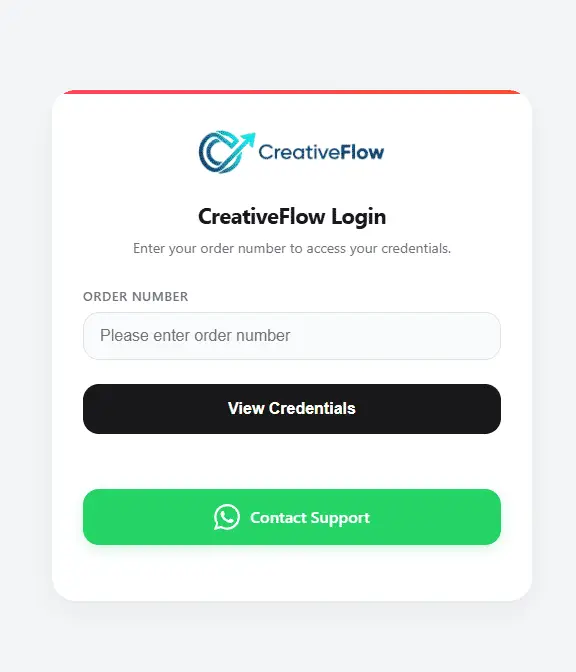
Fig 2: Enter your Order Number in the portal
- Copy Credentials: Once queried successfully, your license card will appear. Click the copy icons to copy your Account and Password.
*Note: The [Get Code] button below is used later to receive security codes when logging into Adobe.
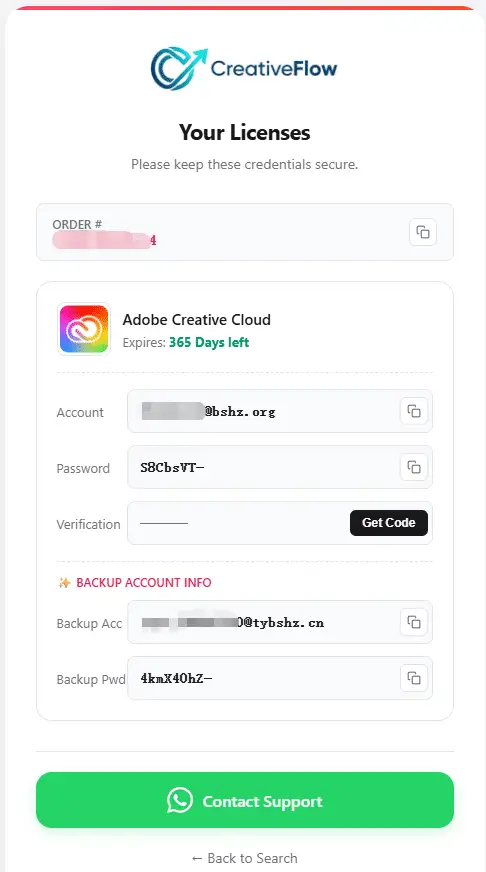
Fig 3: Your Account, Password, and Verification Code section
3
Log in to Adobe- Enter Email: Open the Adobe Creative Cloud (ACC) app or website, enter your retrieved Email Account, and click Continue.
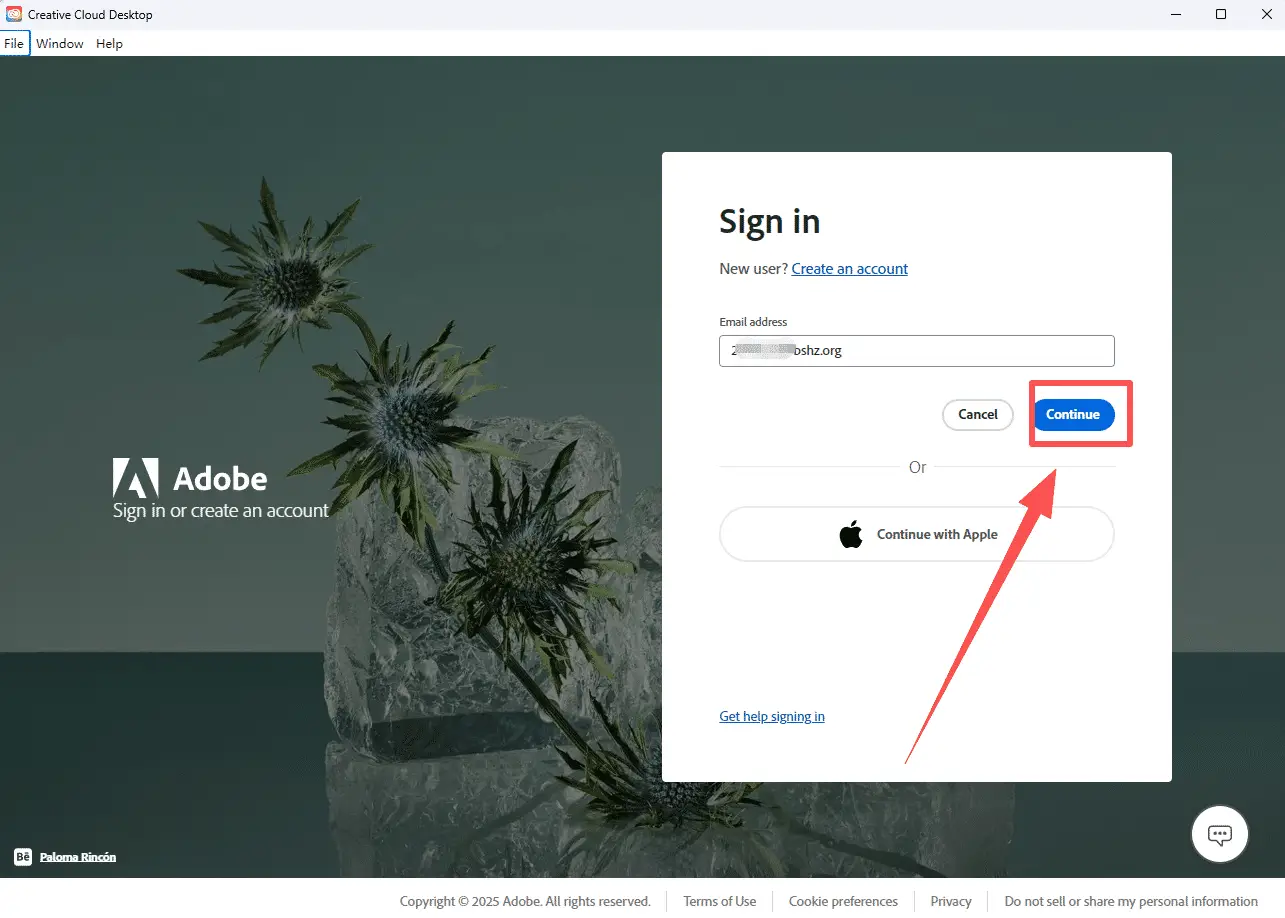
- Enter Password: Paste the corresponding password and click Continue.
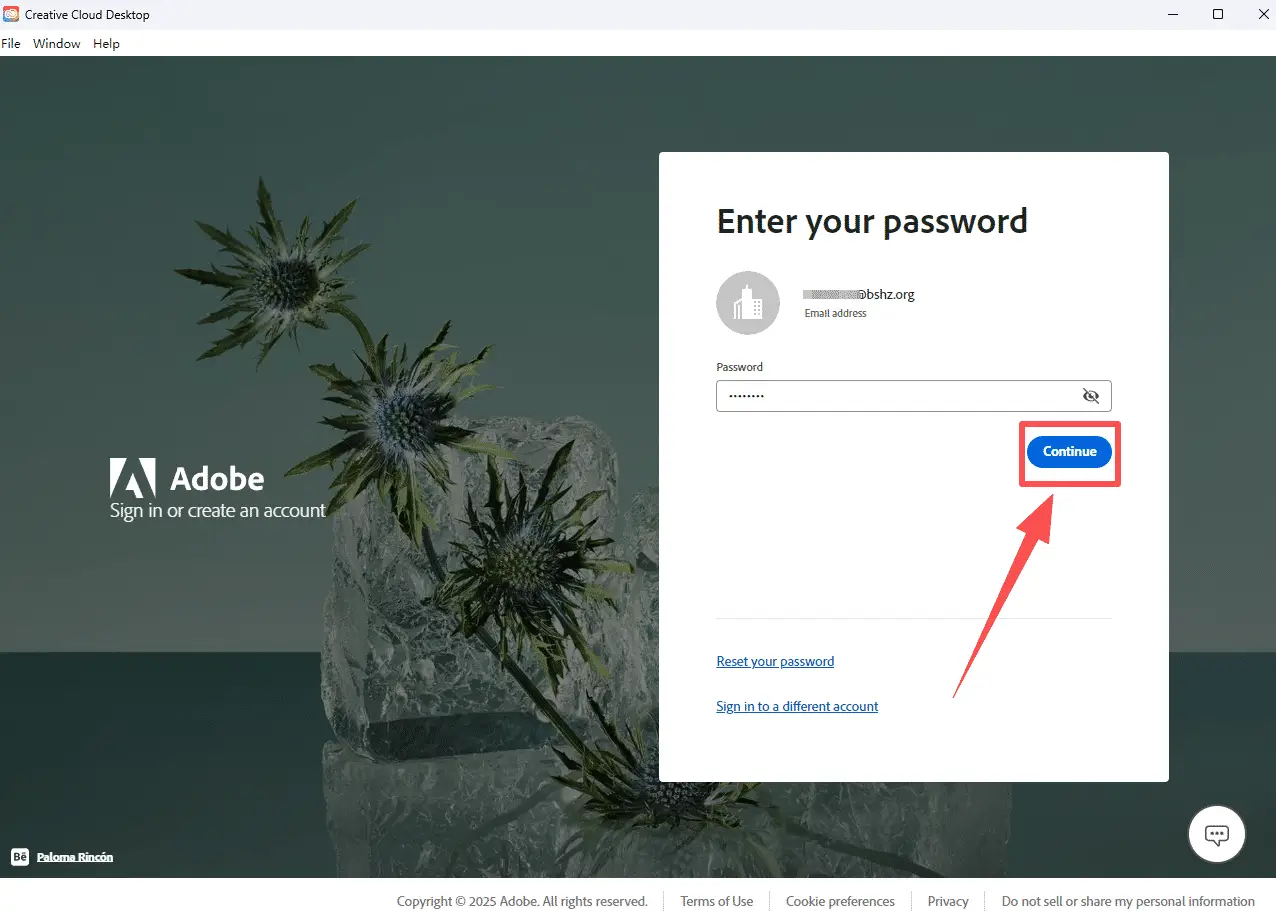
- Get and Enter Verification Code: If Adobe prompts you to send a code, click Send. Return to our delivery portal, click [Get Code], and paste the latest code into Adobe.
⚠️ Anti-Lock Security Mechanism
- If the code is incorrect, do not repeatedly try in Adobe! Go back to our portal to get a fresh code.
- Do not spam the "Send Code" button!
- If your account gets temporarily locked due to frequent requests or incorrect inputs, please wait patiently for 10-15 minutes before trying again.
- Skip Binding (Important):
💡 Tip: If Adobe prompts you to bind a mobile phone number or recovery email during login, always select "Skip". Do not bind your personal information!
- Select Team (Core Step): After successful verification, Adobe will ask you to select a profile/team. Be sure to select the Company/Team Profile (e.g., Berkeley Arawhetū...) which is usually the first option. Do NOT select Personal Profile.
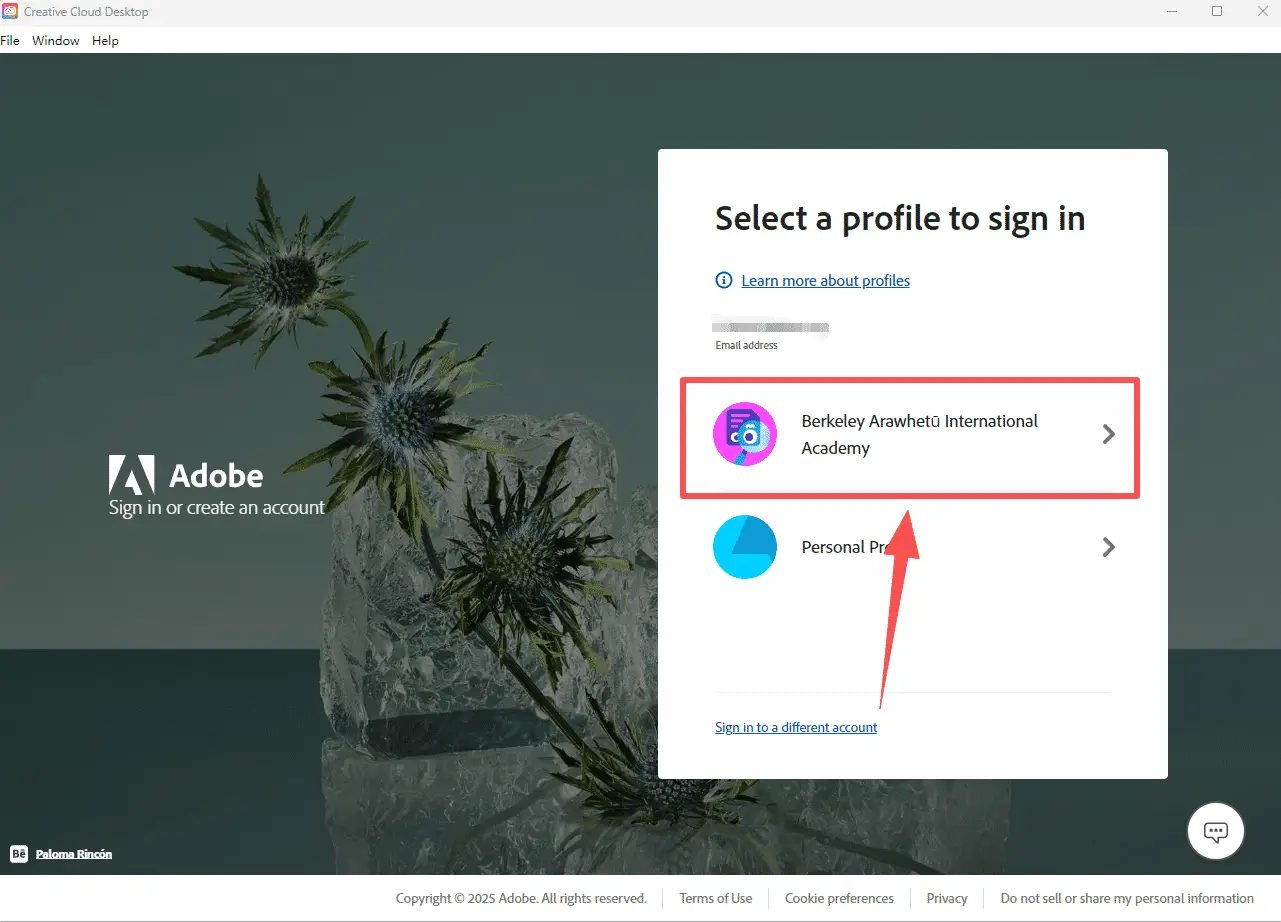
Fig 4: Select the Team Profile to access all premium apps
- Login Successful: You can now download, update, and use all genuine Adobe applications!
⚠️ Support & Notes
💡 About the "Backup Account" Feature
If your main account encounters an unexpected login issue, we have provided an [Apply Backup Account] button at the bottom of the delivery portal.
- Simply state your issue, and a temporary backup account will be generated instantly.
- Backup accounts are valid for 1-5 days to ensure your urgent work is never interrupted while we fix your main account.
Need human assistance or premium assets? Join our community:
Contact Support (Discord)